
FAQs
Frequently asked questions about the Telekom Data Intelligence Hub. For product-specific questions, see the FAQs of each product:
Telekom Data Intelligence Hub Portal application
Section titled “Telekom Data Intelligence Hub Portal application”Product overview
Section titled “Product overview”What is Telekom Data Intelligence Hub Portal application?
Customers can experience all offerings from Data Intelligence Hub via the Portal application. It is the entry point to the world of dataspaces and data products.
What products are available within this Portal application?
Telekom Data Intelligence Hub offers multiple product offerings such as “Connect and Integrate” to participate in a dataspace, “LivingLab” to set up your own sandbox dataspace and develop and deploy your applications, “Digital.ID” to access verifiable credentials required to participate in trusted ecosystems, and also “Data products” from reliable data providers like “Motion Data”.
How can I get onboarded to the Portal application?
Currently, there are several methods to onboard onto the Portal application. If you are a member of Catena-X, you can search for “T-Systems International” in the operating company’s marketplace. You will be prompted to subscribe to our “Connect and Integrate” product, which is a necessary requirement for Catena-X dataspace membership. Once subscribed, you will receive onboarding instructions via email. After completing these steps, you will gain access to the Portal and can explore its various services.
Alternatively, you can directly complete our onboarding form. Upon review and approval of your details, you will receive emails with guidance to assist in your onboarding to the Portal.
Who can benefit from using the Portal application?
Organizations of all sizes looking to leverage data for business growth, enhance their data ecosystems with the help of sovereign data sharing solutions like dataspaces, and ensure trust and compliance can benefit from using the Portal application.
Features and functionalities
Section titled “Features and functionalities”How can I manage my organization on Telekom Data Intelligence Hub?
In the top-right corner of the Portal, under your profile, you can access “My organization.” If you are an administrator, you will see a “Team members” tab, where you can view your organization’s active and invited users on the Data Intelligence Hub Portal. Here, you can see the roles of each user and modify the roles for a few of them based on the access and functionality you want to provide.
The “Organization details” tab displays the basic information configured during onboarding.
How can my organization participate in dataspaces?
Your organization can participate in dataspaces by joining existing dataspaces under the “Participate” section in Portal, relevant to your industry, or creating a new dataspace under the “Build” section with the help of LivingLab. You will then need to onboard your business partners and set up data sharing agreements and compliance rules. Some of the prominent dataspaces are Catena-X, Mobility data space, etc.
What roles are available in Portal that I can assign to users under my organization?
Currently, we are offering 2 roles that contain a set of permissions on what different users are allowed to do in Data Intelligence Hub. These roles are:
- Administrator: The Administrator role grants full authority over user management, commercial activities, and utilization of products and services within the Telekom Data Intelligence Hub.
- Business User: The Business User role provides restricted yet adequate access to all products and services acquired by your organization. While this role limits access to commercial and administrative functions, it allows users to experience the offerings of the Telekom Data Intelligence Hub.
A detailed user guide is available here (only for registered organizations on Data Intelligence Hub): Roles and permissions.
Troubleshooting of common issues
Section titled “Troubleshooting of common issues”"During login, I am receiving error notifications and I'm unable to access Profile"
Issue samples:
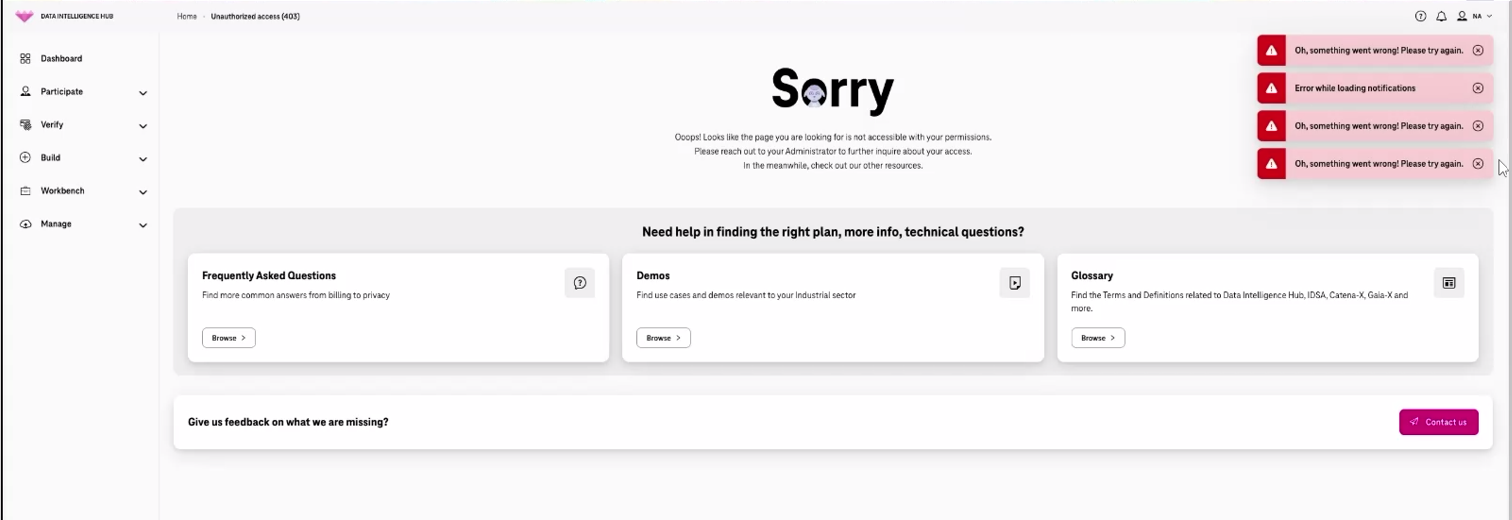
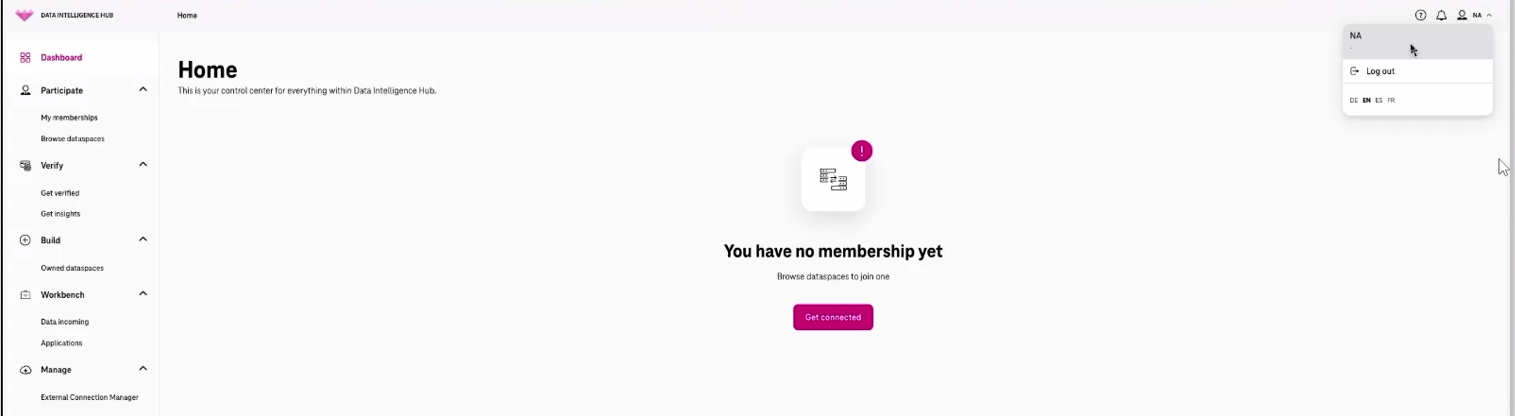
How to troubleshoot:
- User needs to log out of the portal if such issues are experienced.
- User needs to clear cookies and, optionally, restart the web browser.
- User needs to log in to the portal again and the issue should be resolved.
"The Administrator is unable to invite a specific user to the organization"
Issue sample:
This issue occurs when an Administrator of an organization attempts to invite a specific user to the organization. Invitations for other users are successful; however, inviting a particular user with a particular email address triggers the error displayed below when clicking on the “Send invite” button.
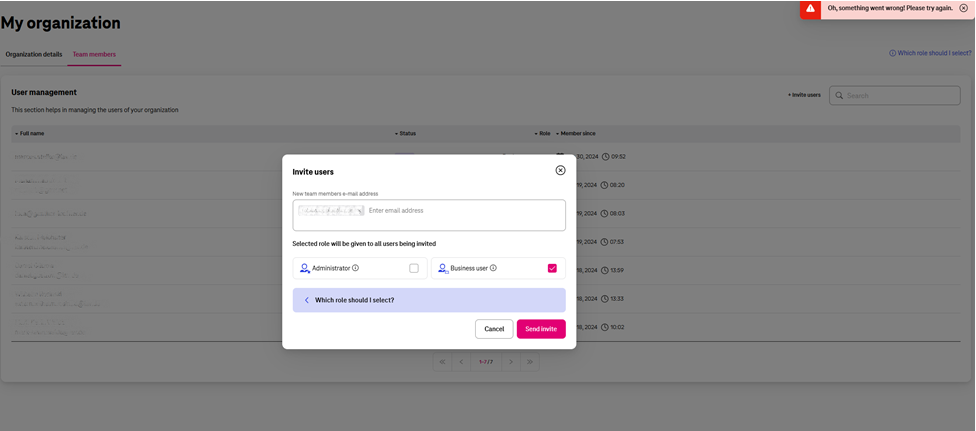
How to troubleshoot:
- The administrator needs to check if other users can be invited; this issue is usually user-specific.
- If the addition of one specific user triggers this error, please contact dih.support@telekom.com.