Incoming data agreements
This segment enables data consumers to view and consume their negotiated data agreements across all dataspaces in which they currently have a membership. One can easily view all agreements, read through provider-issues policies, and eventually consume data files either by downloading on their local system, or transferring to a preferred external connection, such as SFTP etc.
1. Login to your Telekom Data Intelligence Hub account
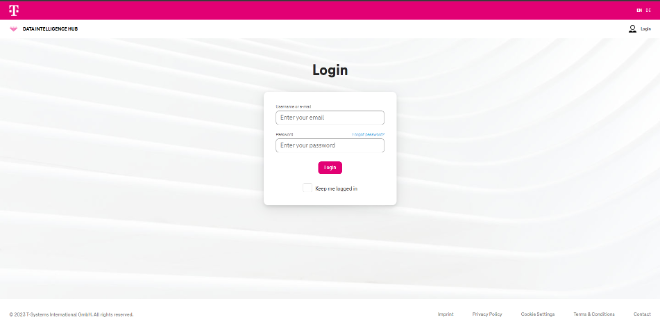
Section titled “1. Login to your Telekom Data Intelligence Hub account”Enter your email address and password for your account, and subsequently click on Login.
2. Navigate to “Workbench” and click on “Data Incoming”
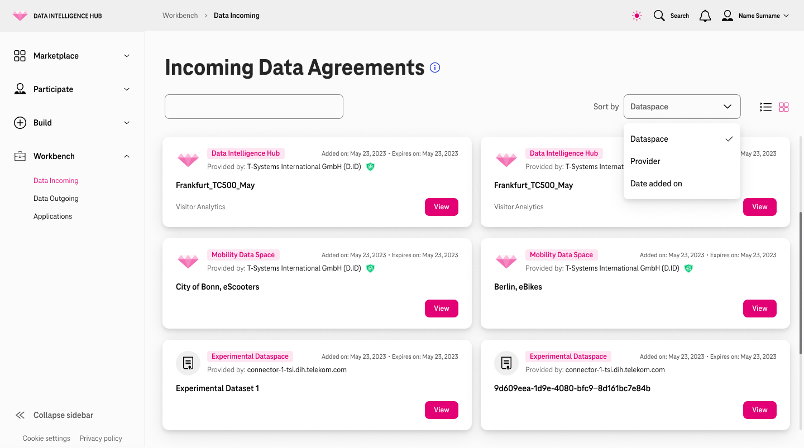
Section titled “2. Navigate to “Workbench” and click on “Data Incoming””Here you will be able to see all the various agreements you have received from across dataspaces, and can have an overview on basic details such as “Product name”, “Added/Expiration dates”, “Provider organization” etc. The agreement titles reflect the file information that the asset contains, and users can easily differentiate. Further functionalities such as “search” an agreement, or “sorting” by various options are also available.
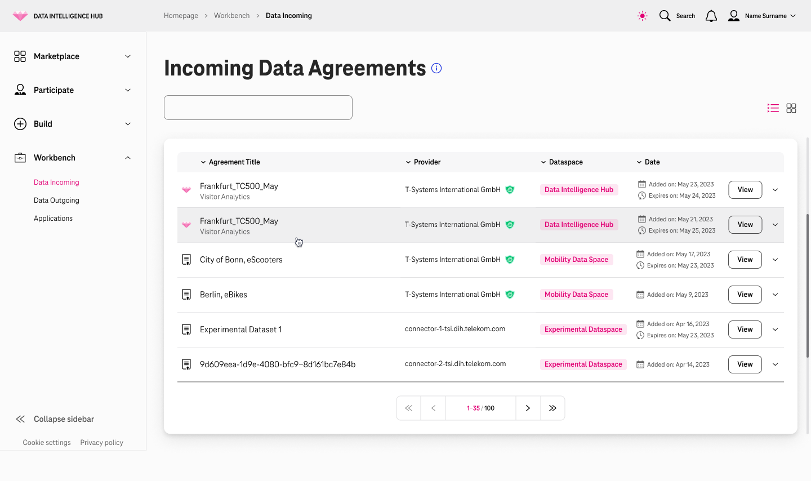
A table or list view of the agreements is also available for easier readability and navigation.
3. Quick download of files via Modal window
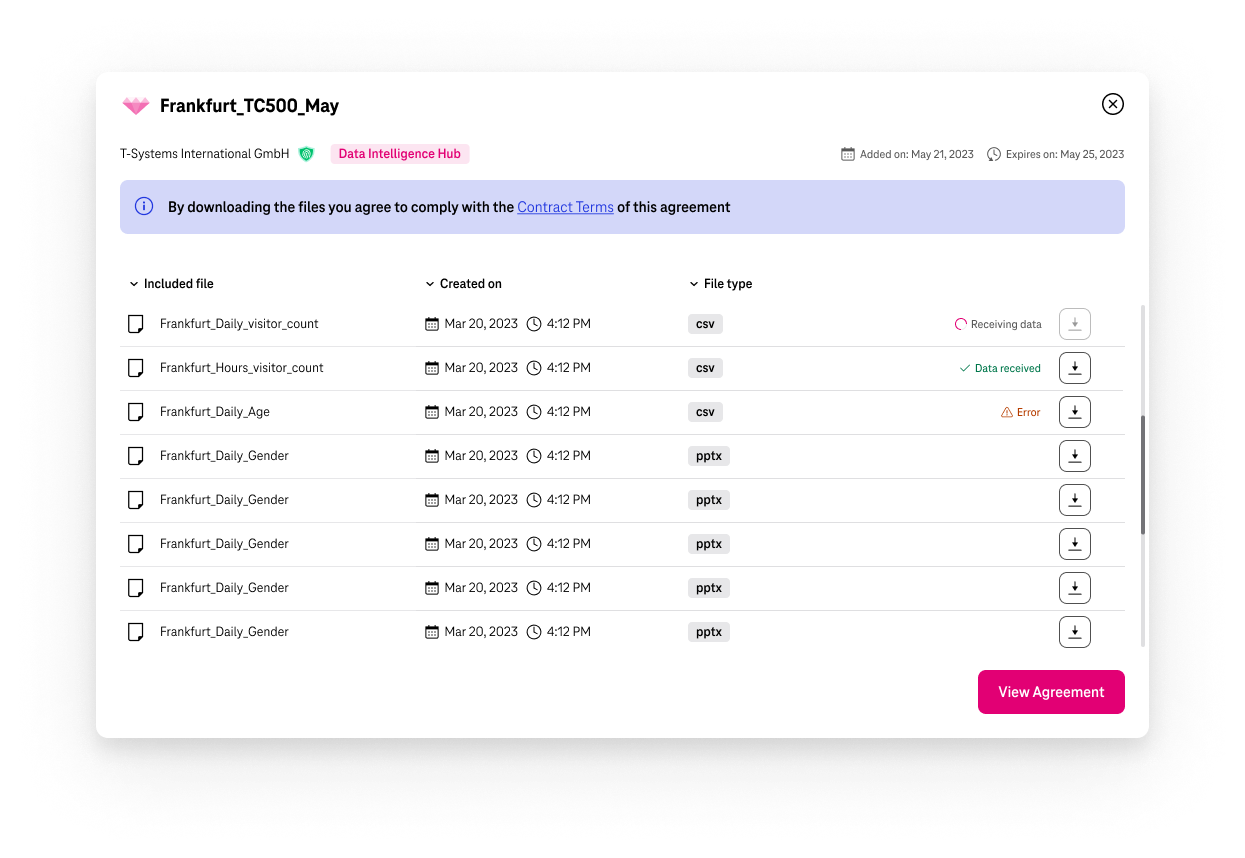
Section titled “3. Quick download of files via Modal window”Clicking on any agreement either in tile view or table view should lead to below pop-up screen which shows list of files available within the agreement. You can also view additional information such as “Created On”, “file type” etc. Please make sure you read the terms and conditions attached to this agreement before downloading files to your local system. Contract terms are available within the agreement view, but quick download can be initiated from this pop-up.
4. Agreement detailed view
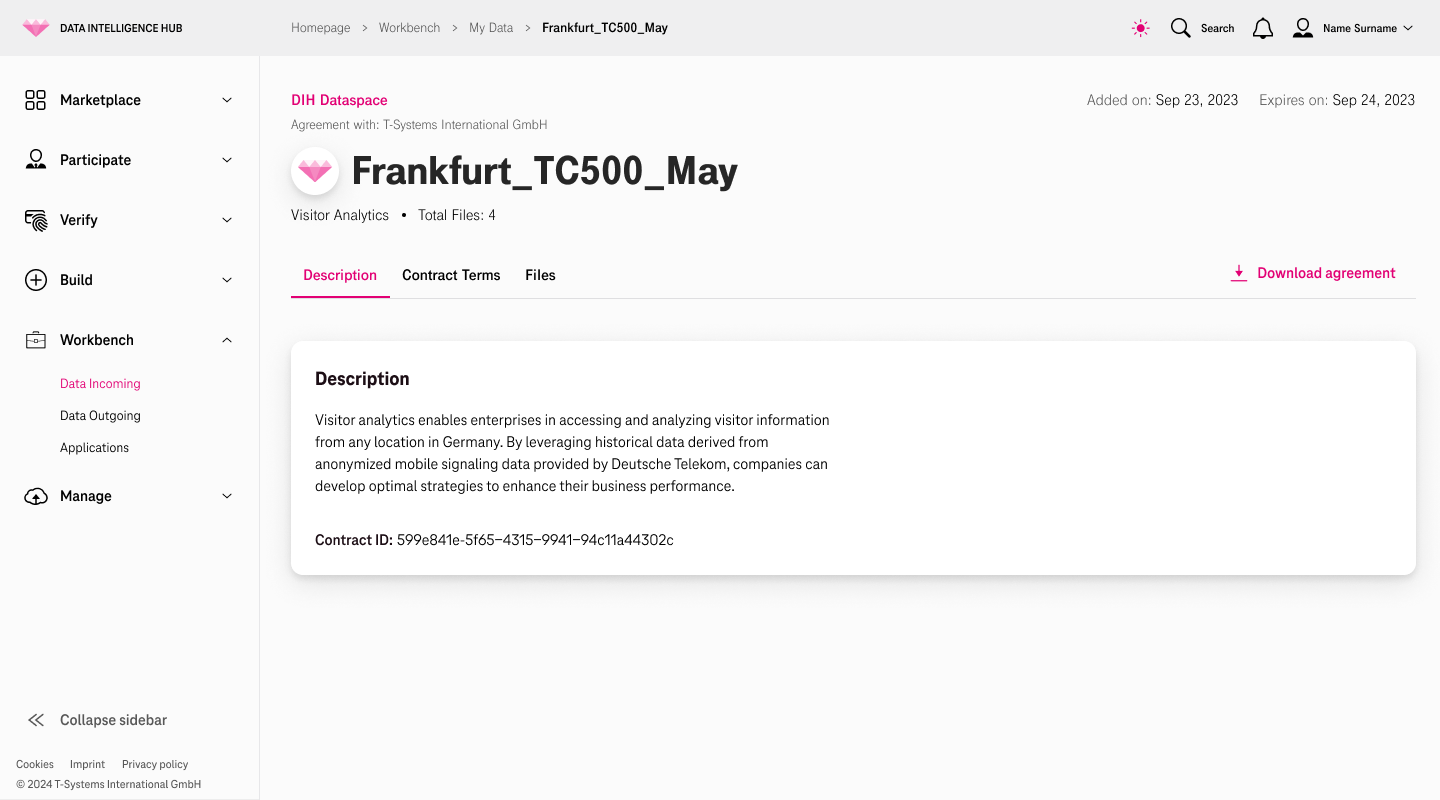
Section titled “4. Agreement detailed view”By clicking on “View” in the “Incoming data agreements” screen or “View agreement” in the modal window, the screen that comes up will be the detailed view of that agreement. Here you can see some more information about the agreement as well as the description of the asset and contract identifier.
5. Download files via Files tab
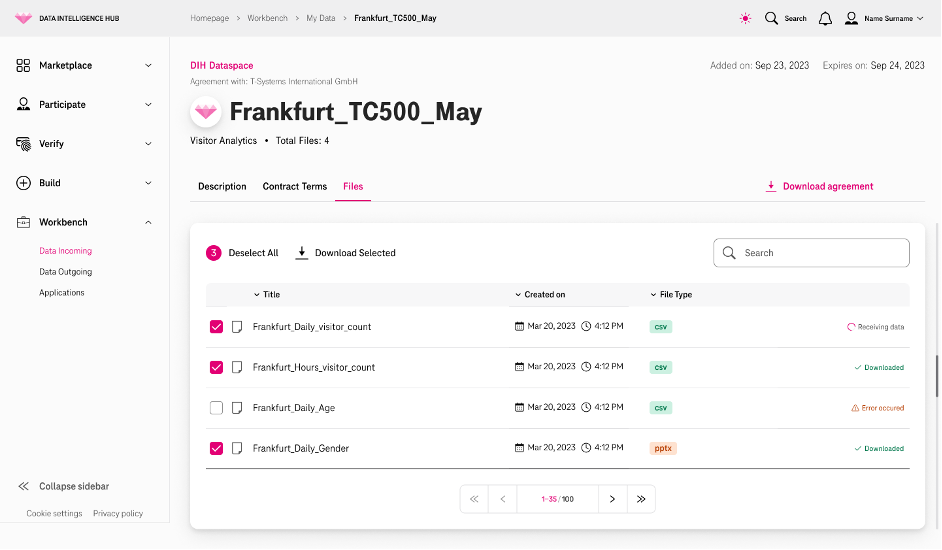
Section titled “5. Download files via Files tab”Click on “Files” tab within the agreement to reach to below screen which also contains similar information of Files as the Modal window. Download can be initiated via this screen as well to your local system. There are various status messages that you will be able to view such as “Receiving data”, which refers to collecting the selected files from data provider’s source location. “Downloaded” indicates that the selected files are available to be downloaded via your browser, and, in case of any interruption during the process resulting in failure, the result would be shown as “error occurred”.