Partner network management
Partner Network Management
Section titled “Partner Network Management”Effective collaboration across organizations is what defines a well functioning partner network.
By using this feature, you can invite as many suppliers, vendors and business partners as you wish to join the Data Intelligence Hub as organizations, and enjoy the data sharing experience with you.
Prerequisites
Section titled “Prerequisites”- You need to be logged in to your Data Intelligence Hub account to use this feature [https://portal.dih.telekom.com]
- You need to have administrator privileges to issue organization invitations; if you’re logged in to the portal, click on this link to ensure you have the role of “Administrator” listed in the Role section of your account [https://portal.dih.telekom.com/settings/user]
Instructions
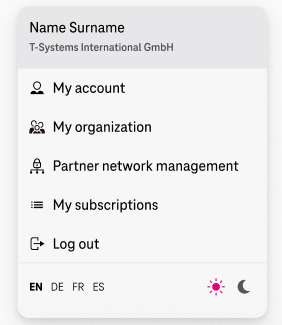
Section titled “Instructions”- Click on the Profile dropdown and choose “Partner network management”
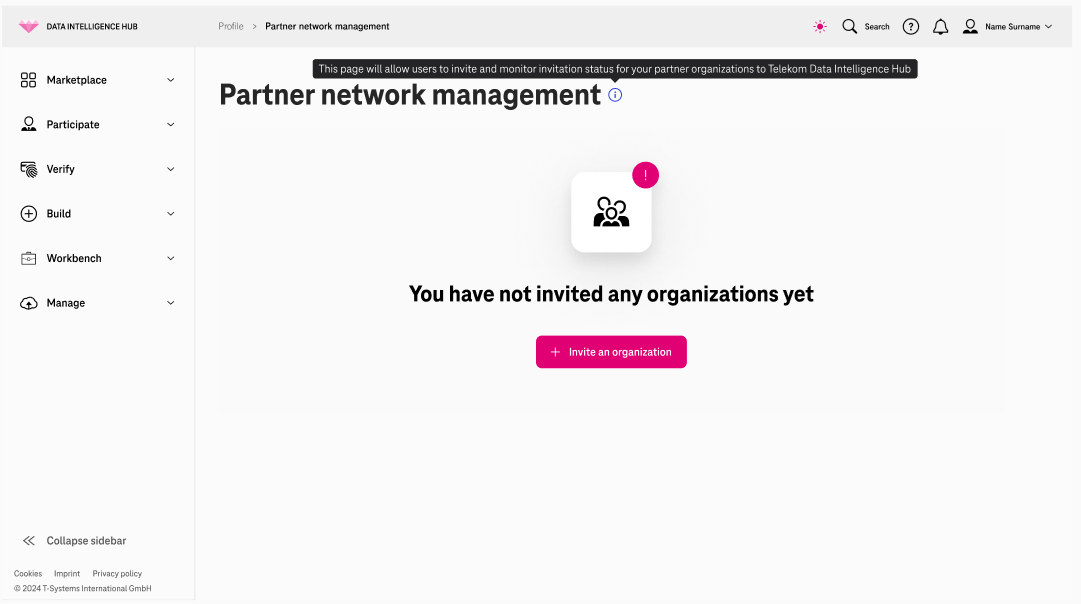
- Click on “Invite an organization” to start the invitation flow
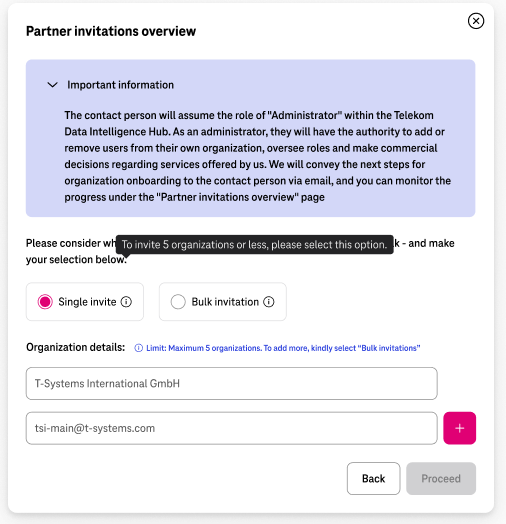
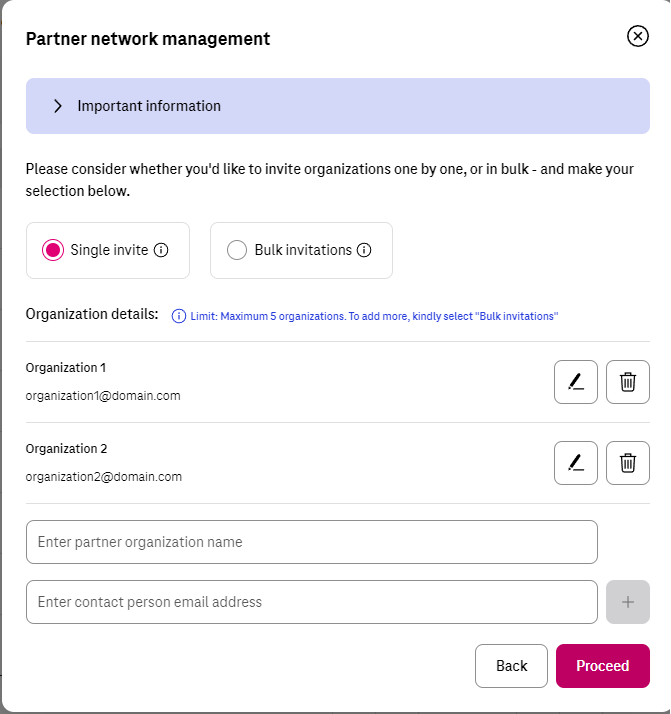
- If you wish to issue the invitation to only one organization, or if you wish to perform one-by-one invitations to up to 5 organizations, please select “Single invite”, and then fill in the name and email address of the organization you want to invite to your partner network. Cilck on the ”+” button to add another organization. You can add up to 5 invitations on this screen.
You can expand/collapse the purple “Important information” info box to gain a deeper understanding of the Administrator role that the invitee will gain within the Data Intelligence Hub portal.
- 1 After you have entered the organization details (name and email address) and clicked on ”+”, the organization you have entered will be displayed, together with the options to edit and delete the organization details. Once you have entered at least one organization to be invited, you can click on “Proceed” to take the next steps in the invitation process.
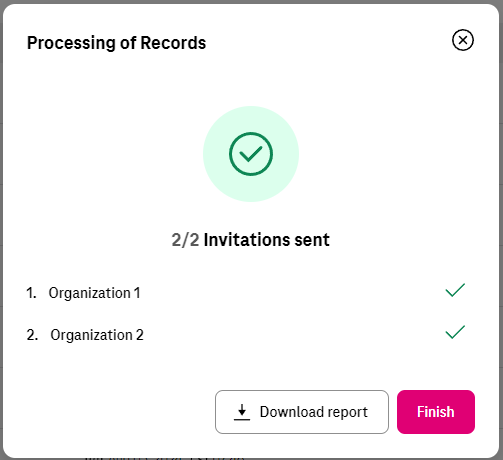
- 2 As soon as the invitations were sent, you will see the success screen below. Alternatively, if any issue arose, the error messages will provide details on any failed invitations.
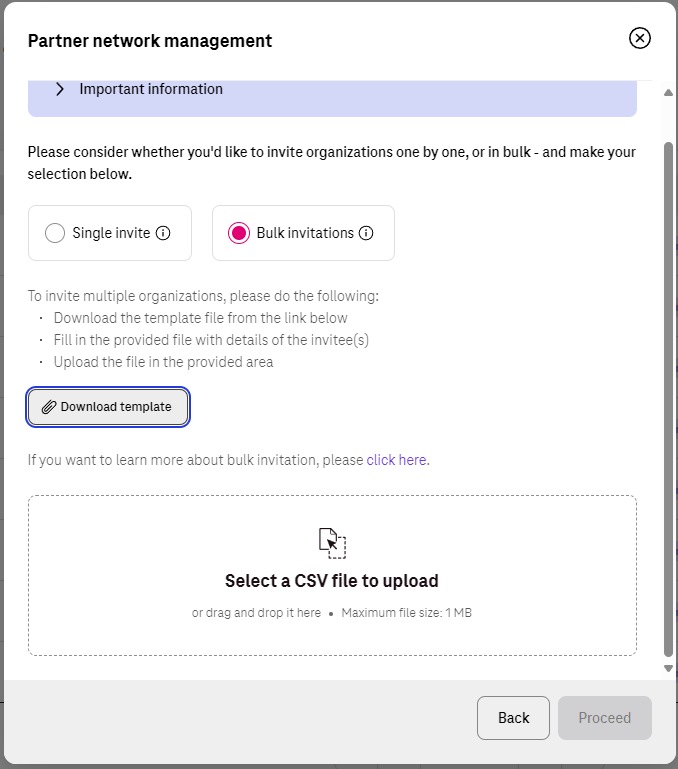
- If you wish to issue the invitation to over 5 organizations, please select “Bulk invitations” - we have created this feature so that you can invite many different organizations with just a few clicks. First, you need to click on “Download template” to get your csv file for mass invitations.
-
- This step will download a csv file - please fill in the organization details (name and email) of all the suppliers and partners you wish to invite to the Data Intelligence Hub.
Please make sure you have saved your file and you know its location.
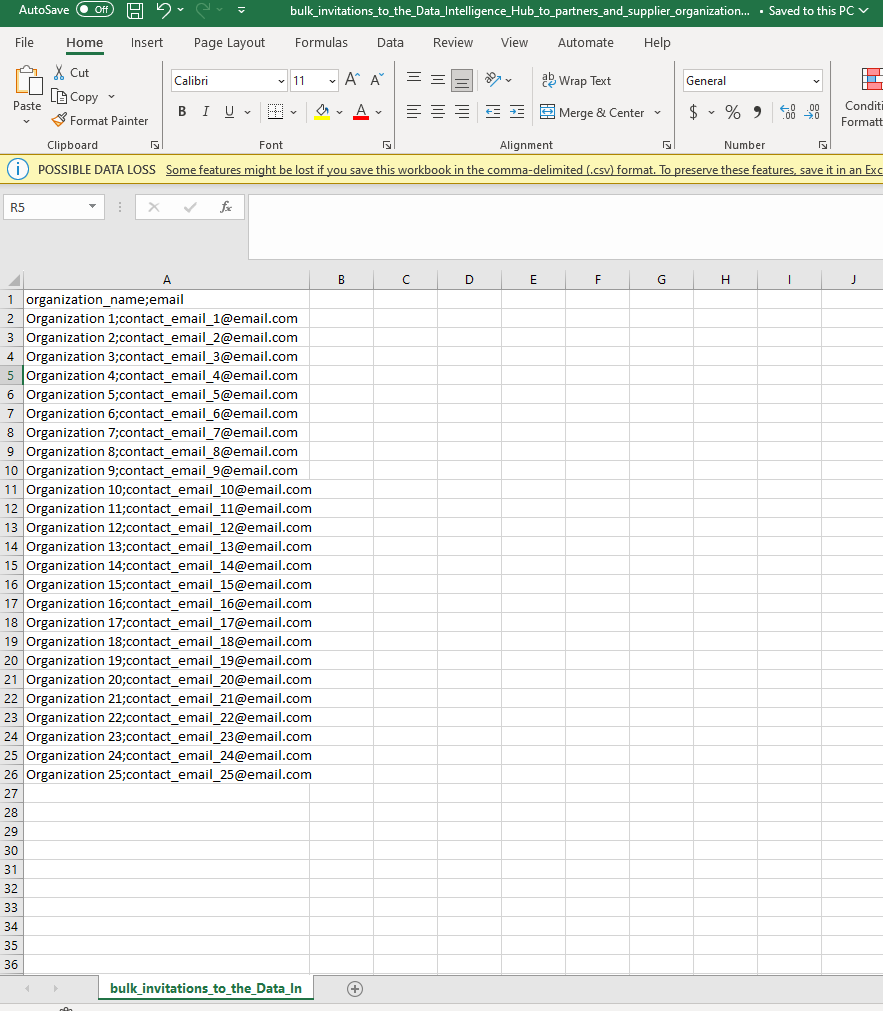
You can view an example of a filled in csv template below. Notice there is no space between the organization name and organization email, they are separated only by a semicolon; in addition, all email addresses are valid, without space and with a domain filled in.
- 2 Once you have successfully uploaded your csv files containing the details of the organizations you want to invite, you can go ahead and click on “Proceed”
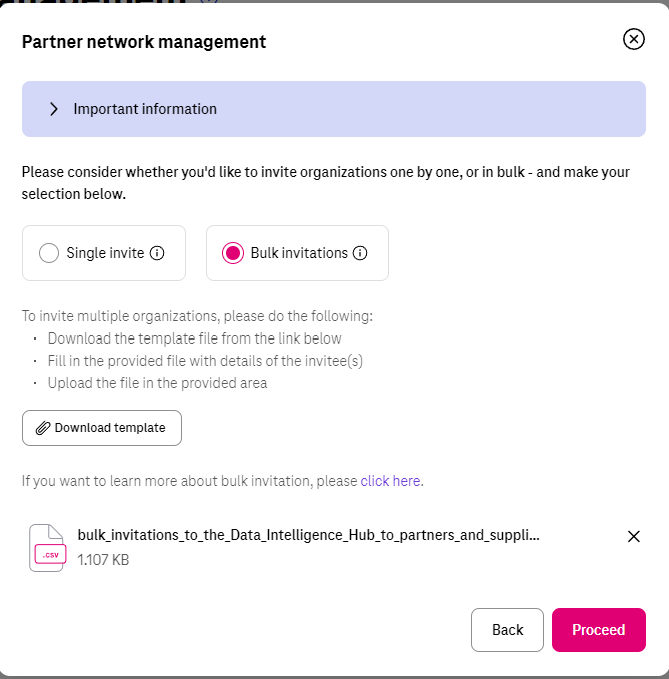
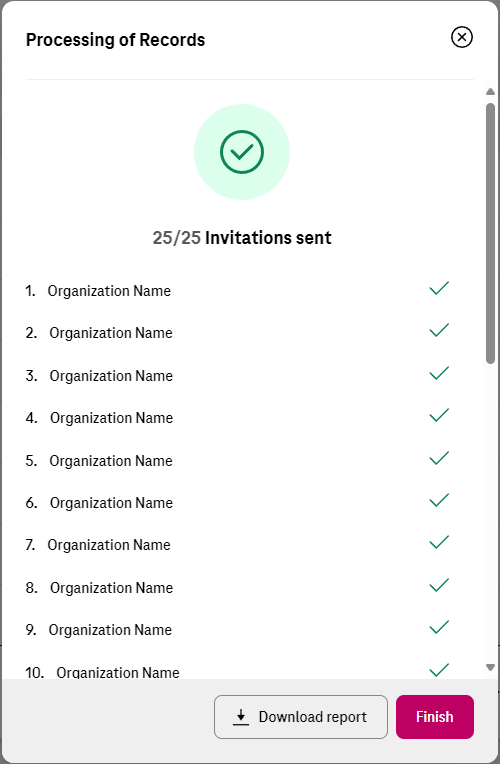
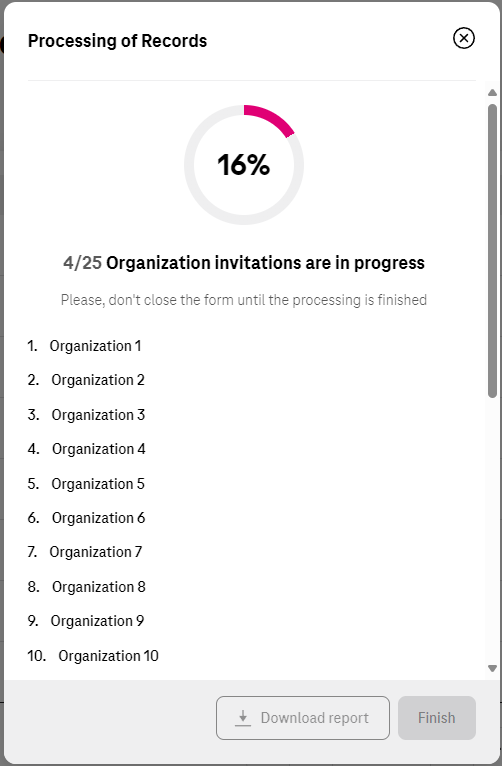
- 3 If you have a significant amount of organizations on your list, you may see a progress screen as visible below. Please don’t close this pop-up until the processing is finished.
-
- When the invitations have been sent, you will receive a success screen detailing the status of each invitation, together with a report you can download so that you can follow up.