
Roles and permissions
Manage the Roles and Permisisons of Users within Your Organization
Section titled “Manage the Roles and Permisisons of Users within Your Organization”This guide will give you step by step instructions on how to manage the roles and permissions of the users within your organization.
Available Roles
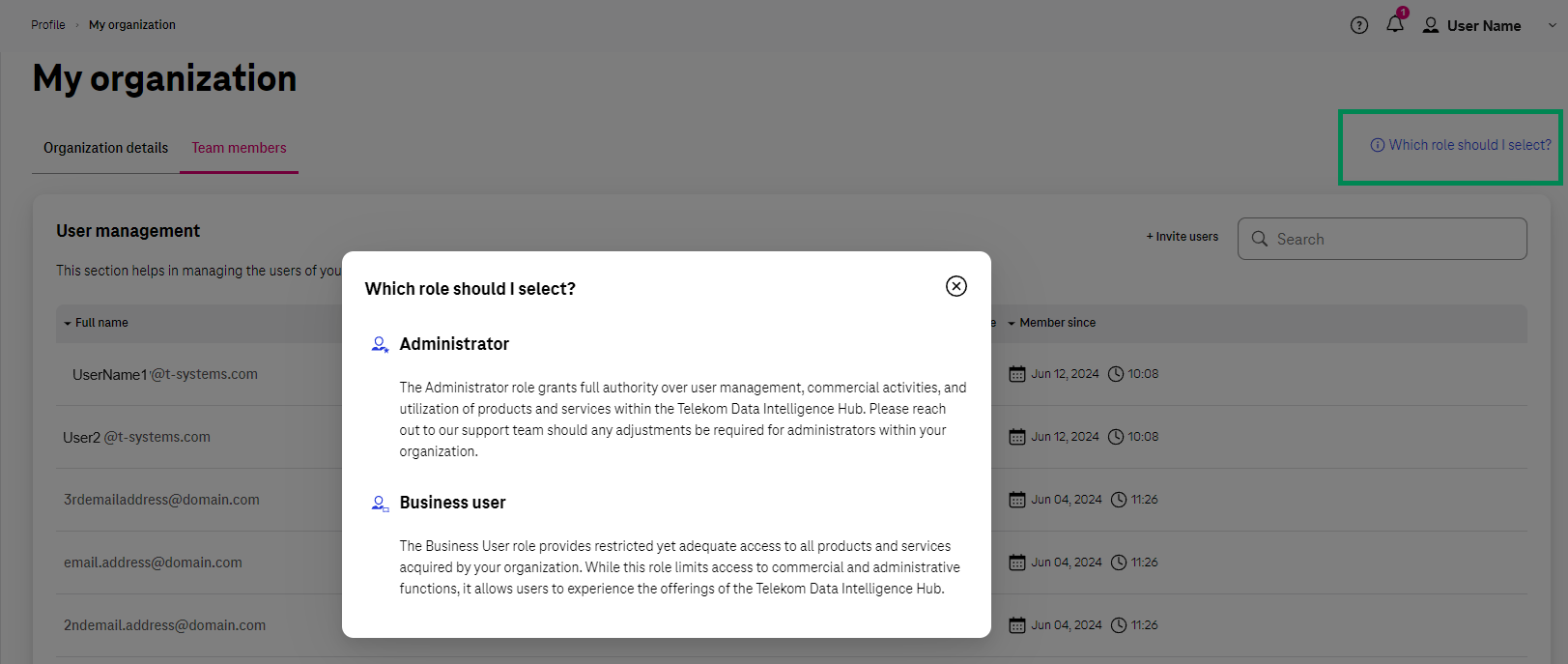
Section titled “Available Roles”- Administrator: The Administrator role grants full authority over user management, commercial activities, and utilization of products and services within the Telekom Data Intelligence Hub.
- Business User: The Business User role provides restricted yet adequate access to all products and services acquired by your organization. While this role limits access to commercial and administrative functions, it allows users to experience the offerings of the Telekom Data Intelligence Hub.
Instructions
Section titled “Instructions”-
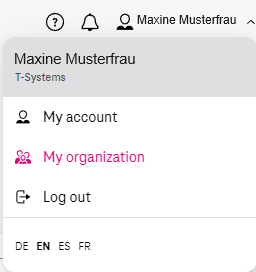
Click on the Profile drop-down and select My organization
-
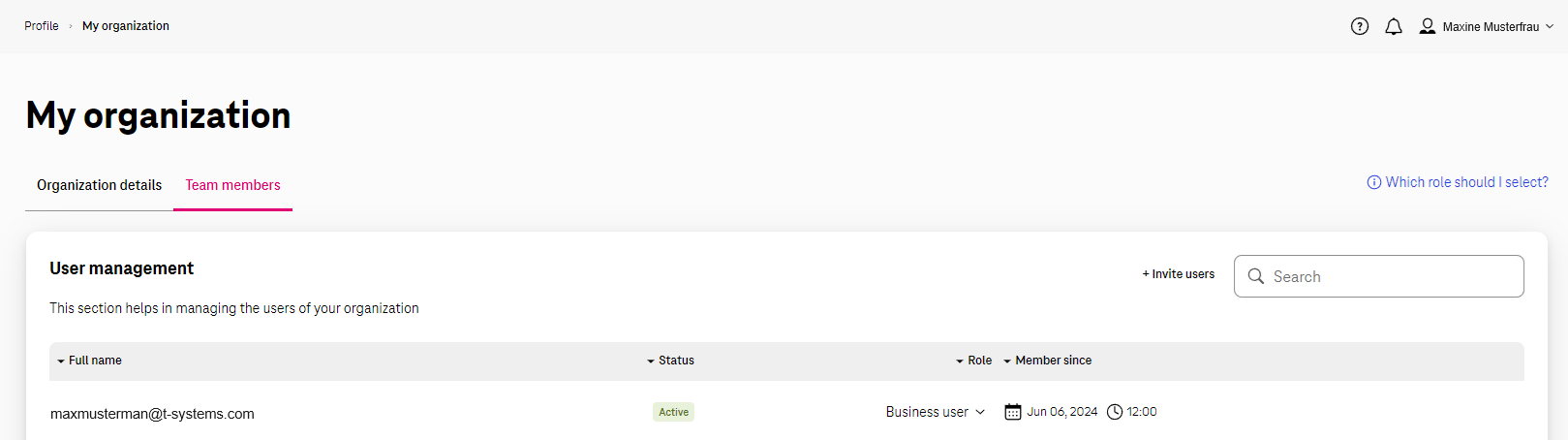
If you have Administrator rights, you are able to navigate to the tab “Team members” on this page
-
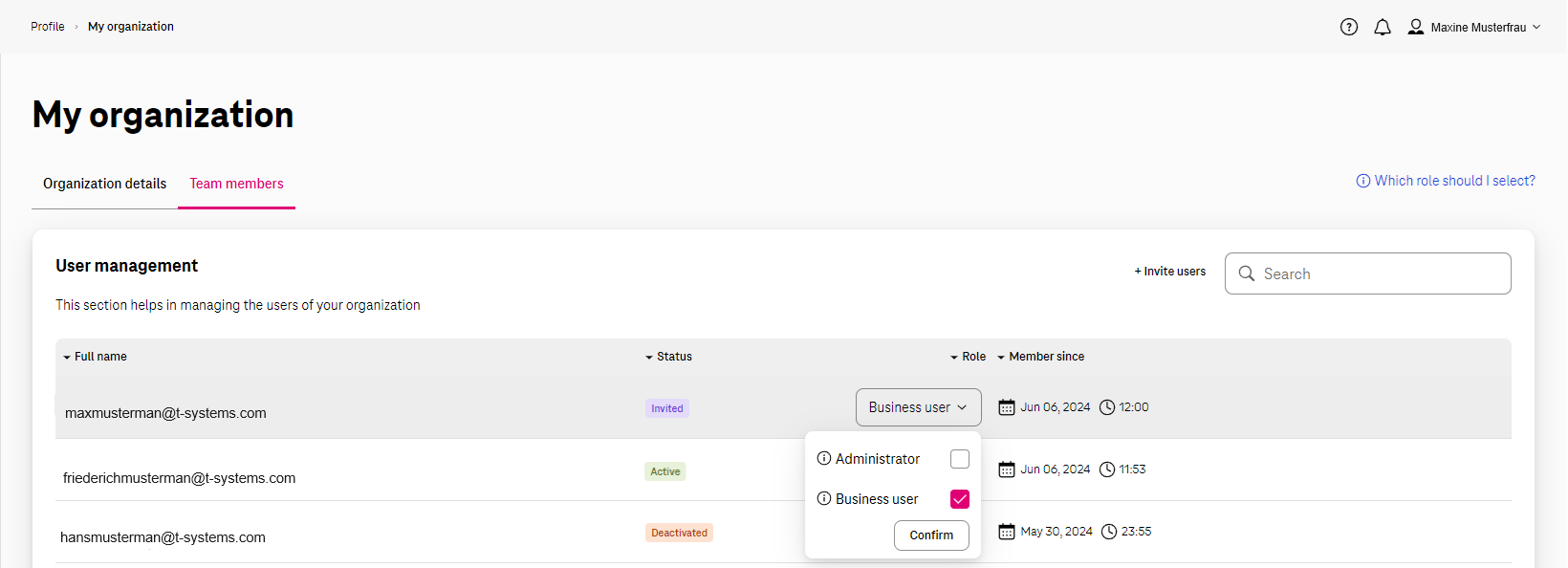
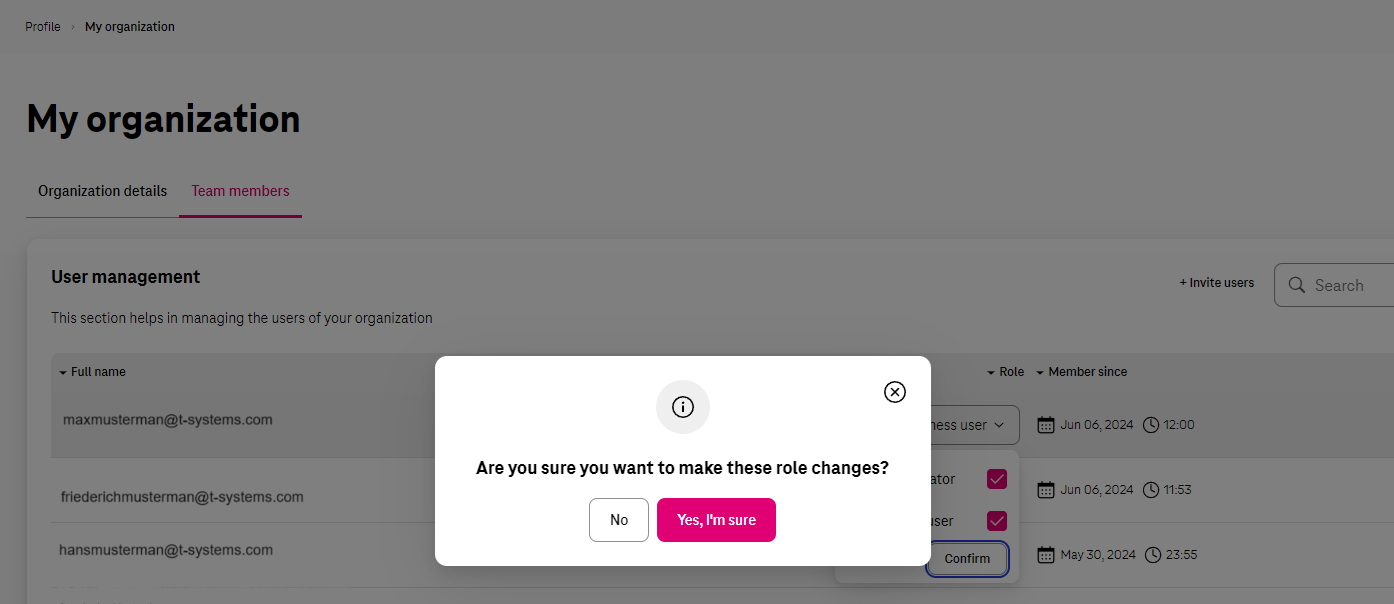
To change the role of a user, you need to first find the user whose roles you wish to change, and click on the arrow downwards on the right hand side of their role:
-
Select all the roles you wish to give this person by checking the checkbox(es) of that role. If you’re unsure of what each role can do, click on “Which role should I select?” on the top right hand side of your My Organization page.
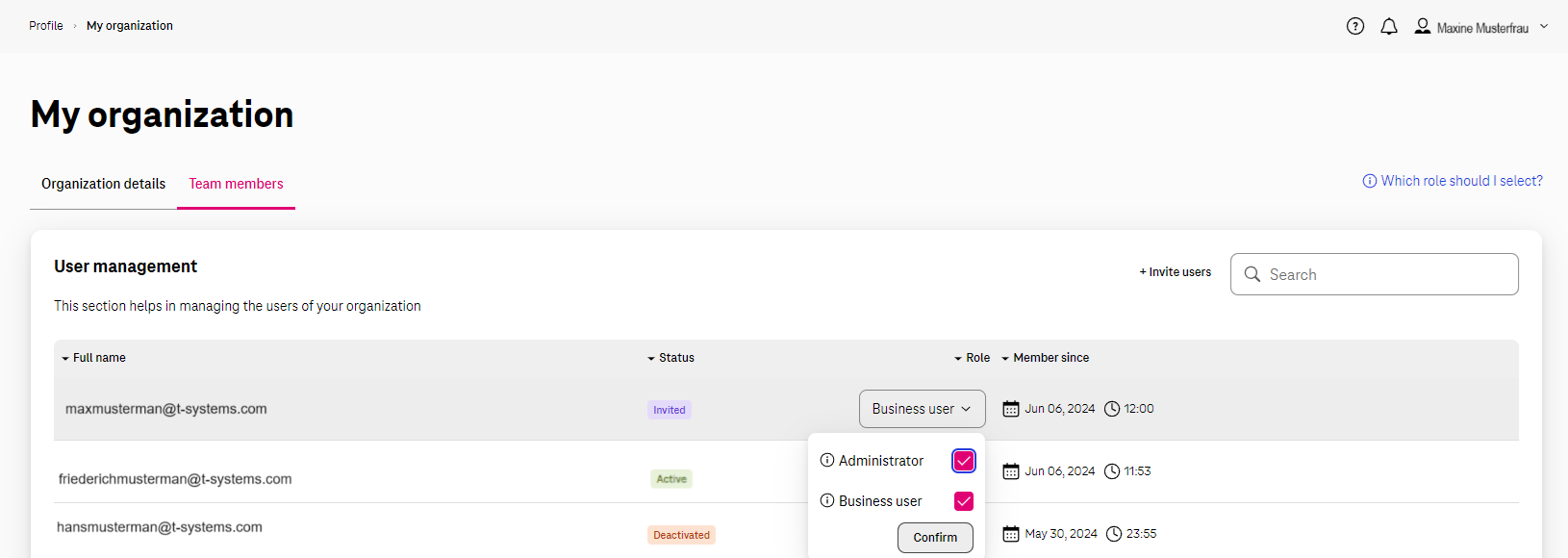
- Once you have selected the new role(s) you wish to grant to a user of your organization, click on confirm and then “Yes, I’m sure”.
Please note that once you enable Administrator rights for a user, this change cannot be revoked via the Portal, you need to reach out to DIH Helpdesk for this task.
- If you’re unsure of which role to assign to a user, you can always check the “Which Role Should I Select?” info on the top right hand corner of the screen.
As always, don’t hesitate to contact DIH_Support@Telekom.de for any inquiries that you might have. We are here to help.